In this article
What is the “Clicked a link” trigger used for
The “Clicked a link” trigger allows you to automate actions based on your contacts’ actual behavior in an email that has already been sent. It relies on click statistics and lets you create targeted scenarios based on the interest shown (or not shown) in specific content.
This trigger is particularly useful for:
- Following up with contacts interested in a specific offer or piece of content
- Adapting your communications based on interests
- Automating follow-ups without manual intervention
.png)
The two types of scenarios available with a click trigger
When creating a click-based scenario, two options are available:
- Follow up with contacts who clicked a specific link in an email
- Follow up with contacts who did not click a link in an email
These two types of scenarios work in a similar way, but the triggering logic is reversed depending on the option selected.
Scenario 1: Follow up with contacts who clicked a specific link
This scenario is triggered when a contact clicks on one or more specific links in a selected email, or at a specific date and time, depending on the trigger mode chosen.
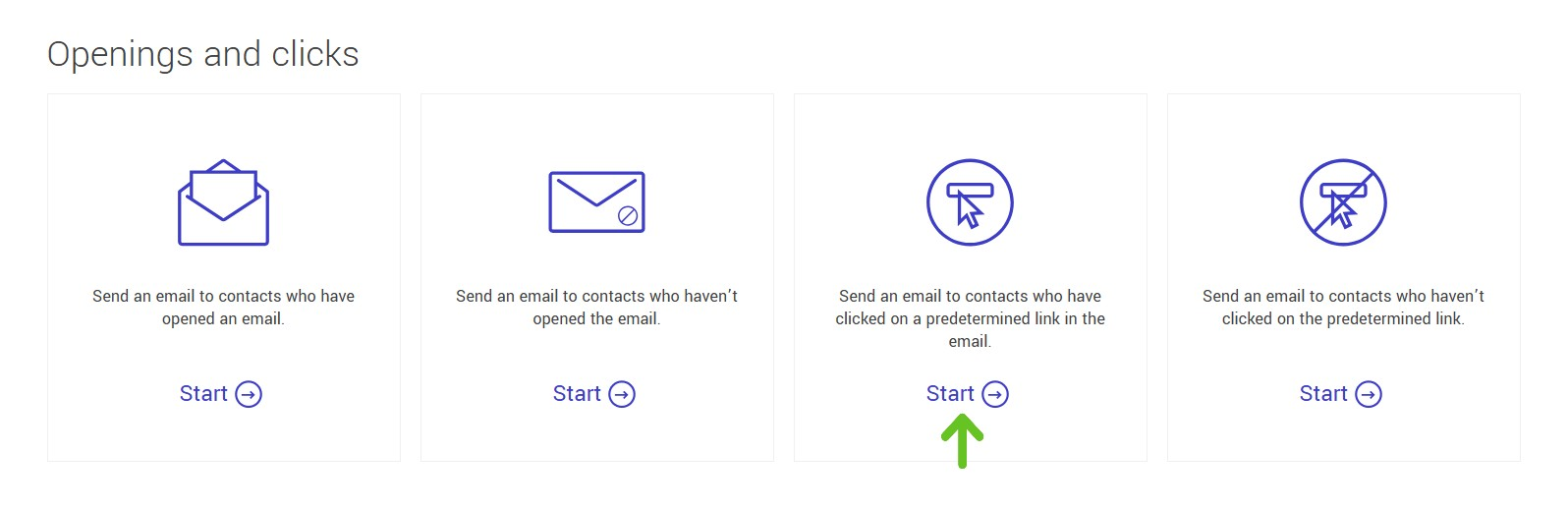
Configuration steps
- Select the email send
Select the email that has already been sent and for which you want to analyze clicks. - Select the links to track
You can:- Track all links in the email
- Or manually select specific links
- Define the scenario actions
If a contact clicks on one of the selected links, they enter the scenario and the defined actions are applied automatically, such as sending a follow-up email, adding or removing the contact from a group, or any other action included in the scenario.
Learn more about available actions >
Example
You send an email presenting three different services, each with its own link. You can create a scenario that sends a personalized email only to contacts who clicked on the link for a specific service.
Scenario 2: Follow up with contacts who did not click a link
This scenario targets contacts who did not click on any of the tracked links in a selected email.
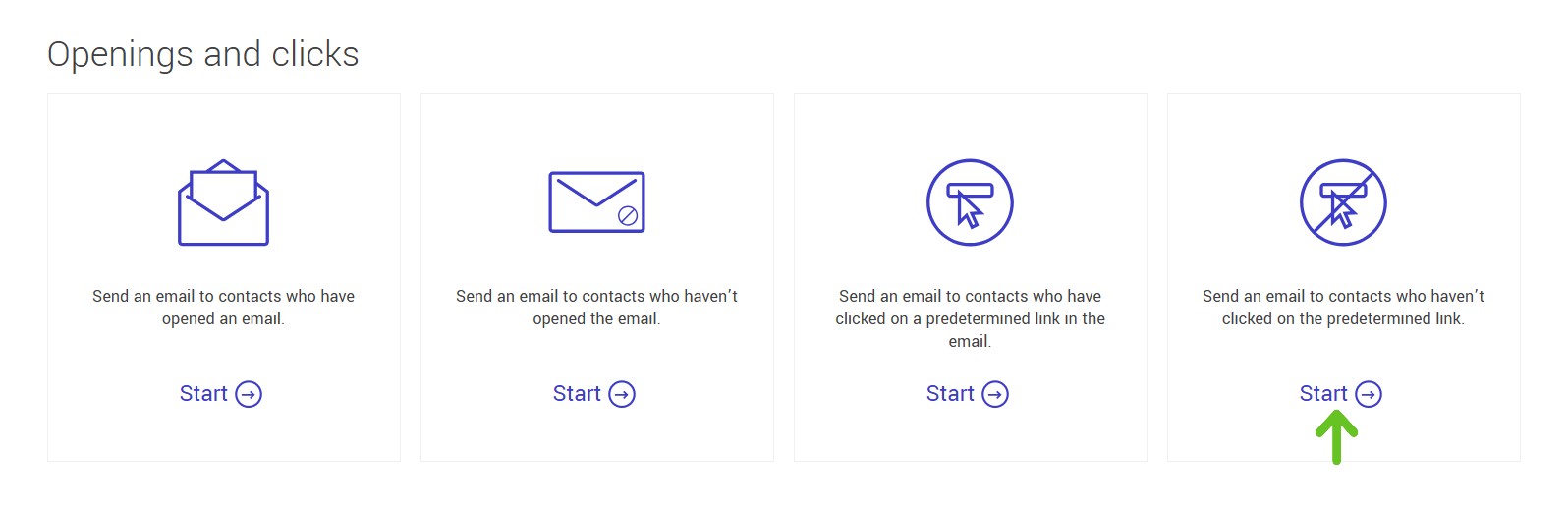
Configuration steps
- Select the email send
Select the email for which you want to analyze clicks. - Set the verification date
Choose the date when the system will check whether contacts clicked on the email links.
This step allows enough time for contacts to interact with the message before the scenario is triggered.
Note:
The verification is performed only once, at the selected date and time.
At that precise moment, the system identifies contacts who did not click on the tracked links and triggers the scenario only for them. - Select the links to track
You can choose:- All links in the email
- Or only specific links
- Entering the scenario
On the selected date, contacts who have not clicked on any link (or any of the selected links) automatically enter the scenario. - Automated actions
You can then apply one or more actions, such as:- Sending a follow-up or reminder email
- Adding or removing contacts from a group
Example
After sending a newsletter, you can configure a scenario that, a few days later, follows up only with contacts who did not click on any link (or on any specific link), using a different subject line or a more compelling message.
Selecting the links to track
When configuring the scenario, you must decide which email links will be included in the click analysis. Two options are available:
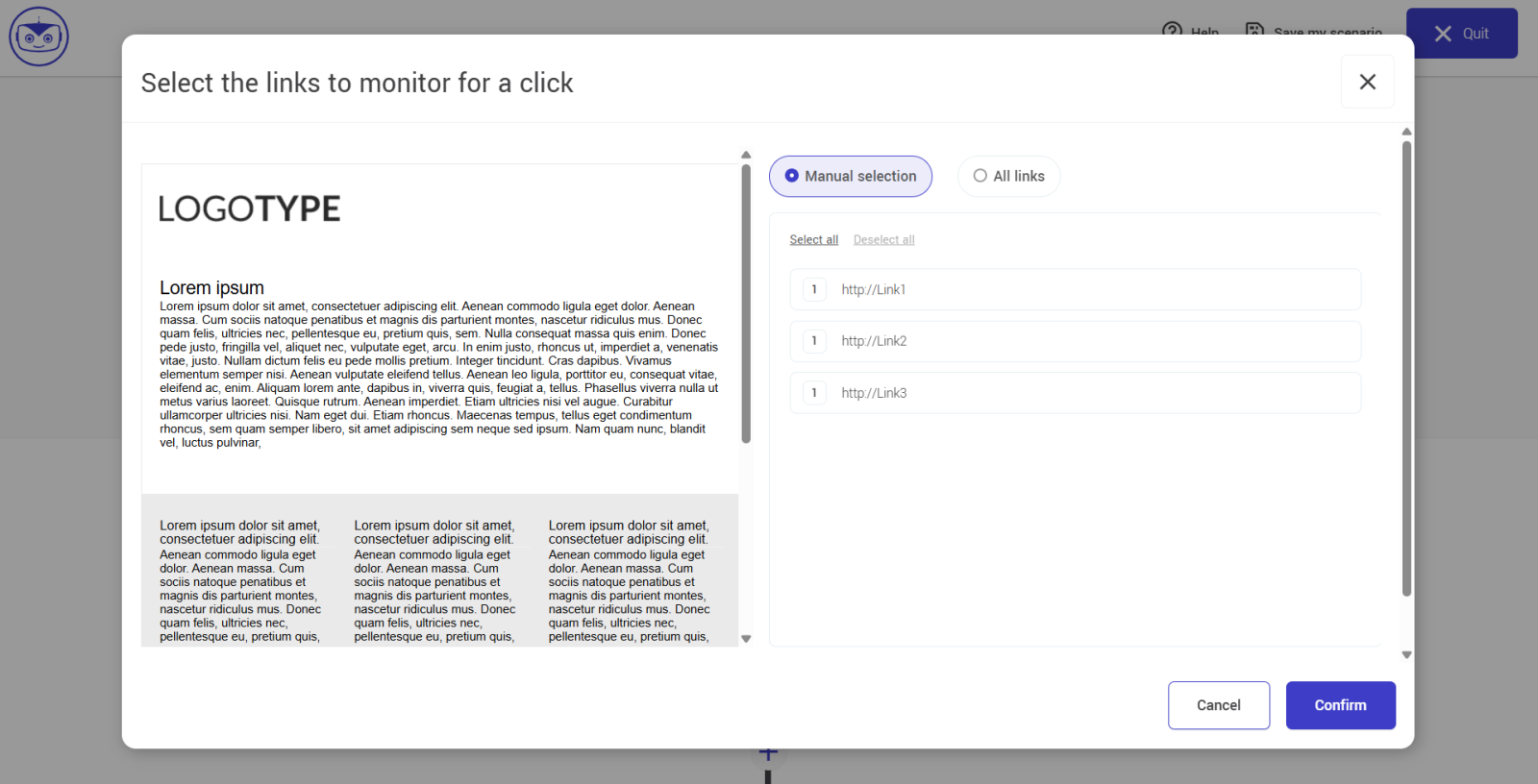
Manual selection
- You select exactly which links should be tracked
- Links are grouped by blocks, including dynamic blocks
- The contact’s behavior (click or no click) is evaluated only based on the selected links
All links
- All links in the email are tracked
- The contact’s behavior is evaluated based on all links in the message
Notes
- For a click-based scenario, the moment a contact enters the scenario depends on the selected trigger mode:
- As clicks occur: the contact enters the scenario as soon as they click on at least one tracked link.
- At a specific date and time: the contact enters the scenario at the time of verification, if they clicked on at least one tracked link before that date.
- For a non-click scenario, the contact enters the scenario if they did not click on any of the tracked links at the defined verification date.
- A single click on a tracked link is enough to exclude a contact from a non-click scenario.
Best practices and use cases
- Use clearly identifiable links to segment your contacts effectively
- Avoid tracking too many links if you want precise targeting
- Combine this trigger with conditions (consent, contact criteria) to refine which contacts can enter the scenario
- Ideal for: sales, downloadable content, event invitations, training sessions, or demos.